How to Brighten Dark Scanned PDF Documents
Scanned PDFs
Decide whether the problem is exposure, contrast or missing detail
A dark page can hide faint writing; a gray background can make otherwise sharp text tiring to read. Brightness shifts tones lighter or darker. Contrast changes separation between light and dark tones. Neither adjustment restores detail that the scanner never captured or recognizes words as text.
Adjust PDF Brightness applies the same brightness and contrast settings to every page and exports page images at 144 dpi. This rasterizes the PDF: selectable text, links and interactive fields do not remain interactive. Keep the original, particularly if it already contains searchable text or signed information.
Practice with a deliberately dark sample
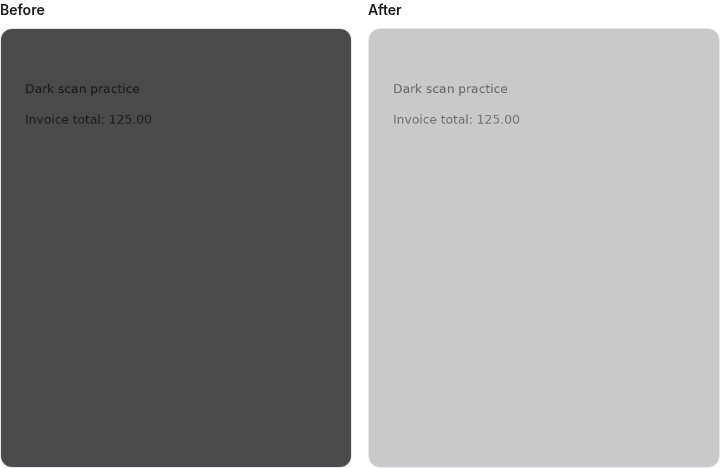
Download the dark-scan practice PDF. Its invoice text is fabricated and embedded as an image. Use it to learn the controls without sharing personal records.
- Open Adjust PDF Brightness and select the sample.
- Compare Before and After at the neutral settings first. Zero is neutral for both sliders.
- Increase brightness gradually. Stop before pale marks or thin strokes become difficult to distinguish.
- Adjust contrast separately. Compare the amount and small lettering with the original rather than choosing the most dramatic-looking preview.
- For a multipage document, use Previous page and Next page to inspect every page. The selected settings affect all pages, not just the visible preview.
- Click Process, download the adjusted PDF and reopen it. Check page count, orientation, legibility and file size.
No particular slider setting or readability improvement is guaranteed. A dark typed invoice and a faint pencil note can need conflicting adjustments.
Avoid sacrificing a good page to repair a bad one
If only one section needs adjustment, extract that section first using Extract Pages. Adjust the smaller file, then merge it with the unadjusted sections in their intended order. Plan the sequence on paper and check the final labels; a careless reconstruction can duplicate or omit pages.
For a large or mixed document, rescanning the affected pages with suitable settings may be better than applying one global correction. PDF Fix Hub does not provide automatic per-page exposure correction, background removal or OCR.
Common mistakes
Turning both sliders to extremes can make a preview look cleaner while erasing light handwriting. A preview is not enough to judge all pages, and a bright phone display is not the same as a printed copy.
Do not interpret “text is no longer selectable” as a processing bug after export. It is a stated consequence of this image-based adjustment. If only orientation is wrong, use Rotate PDF, which does not deliberately rasterize the page content.
If the output is large or still hard to read
Rasterizing a compact text PDF may increase size. Compress PDF can try to reduce it, but further image compression can damage the faint details you just improved. Compare the download with both the adjusted and original copies.
If the smallest text remains blurred, a higher-quality source scan may be necessary. If processing fails on a phone, try fewer pages or a device with more memory. There is no guaranteed maximum document size.
Frequently asked questions
Will the adjustment make the file searchable? No. The output is page images. Recognizing scanned pages explains the difference from embedded text.
Can I apply a different setting to each page? Not in this interface; separate sections first if necessary.
Does grayscale guarantee black-only printer ink? No. Grayscale PDF changes appearance, but the printer and driver control ink use.