How to Merge PDF Files in the Correct Order
PDF organization
Separate file order from page order
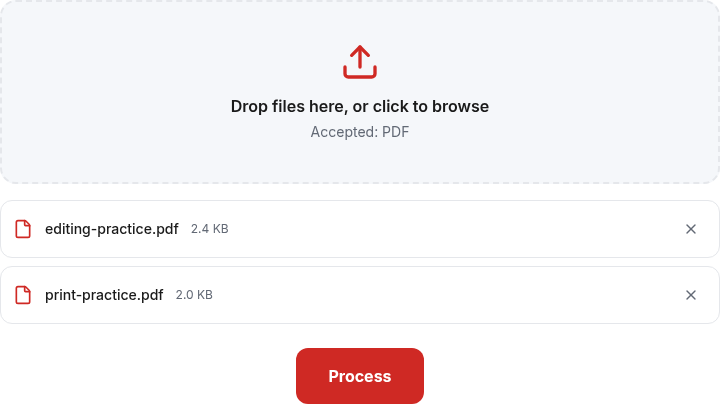
Merge PDF appends the pages of each file in the displayed file-list order. It does not automatically sort by chapter name, date, printed page number or the order in which you clicked items in your operating system's file picker. Check the list the website actually shows.
Reorder Pages changes individual page positions after a merge. It requires every page exactly once; omitted or repeated numbers are errors. Use Remove Pages for deletions instead of leaving numbers out of a reorder list.
Example: assemble an application packet
Imagine a one-page cover, a three-page statement and a two-page appendix. Make a short plan before selecting files: cover first, statement second, appendix last. The expected combined count is six pages, and the appendix should begin at position five.
- Open Merge PDF and add the cover, statement and appendix in that sequence.
- Read the displayed filenames. If one is misplaced, remove it and add it again to move it to the end. The current file list does not have drag-to-sort controls.
- Click Process, then Download.
- Open the saved PDF and inspect positions 1, 2 and 5 — the start of each input file — as well as the final page.
- Confirm the total is six. For documents with repeated-looking pages, compare headings or other distinguishing content, not just thumbnails.
These counts follow from the example inputs; they are not measured results for an unknown file.
Example: insert a page into the middle
Suppose an existing three-page PDF needs a one-page correction sheet between its first and second pages. Merge the three-page document first and the correction second. The temporary order is original pages 1, 2, 3, then correction.
Open that result in Reorder Pages and enter 1,4,2,3. The values refer to positions in the merged file, not page labels printed on the paper. Inspect the four-page download and confirm the correction now follows the first page.
For harmless practice, use the eight-page labeled sample: extract 1-3 into one PDF and 4 into another, then follow the same merge-and-reorder pattern. The labels help reveal an accidental swap.
Finish ordering before adding numbers
If the packet needs visible numbering, use Add Page Numbers after the final merge and reorder. Its format is current / total. Renumbering an already numbered copy adds another overlay, so keep an unnumbered master.
A landscape appendix keeps its own page geometry. Do not rotate every page merely to make one page upright; the rotation guide explains a selective workaround.
Common mistakes and troubleshooting
A filename such as “page10” may sort before “page2”. Zero-padded names help you recognize a sequence, but they do not replace checking the displayed order. Browser downloads may also add suffixes such as “(1)”; inspect the newest file deliberately.
If the page count is wrong, compare each input's count and boundaries before repeating the merge. Do not repeatedly append the correction to a file that already contains it. Return to the originals.
Frequently asked questions
Does merging preserve bookmarks and signatures? Do not assume document-wide features survive unchanged. Rewriting can invalidate a digital signature. Keep the original signed files.
Can I repeat a page using Reorder? No. Each current page must appear exactly once.
Will it make scans searchable? No. Merge copies pages; it does not add OCR. For content-quality checks beyond order, read merging without unnecessary rasterization.