How to Edit Text in a PDF: What Actually Works
PDF editing
Start by identifying what you want to change
Changing a printed amount, adding a comment and correcting a scanned invoice are different jobs. A PDF is a set of positioned page objects, not a word processor document. A line that looks like one sentence may be several separate objects. A scan may contain no text objects at all.
Edit PDF offers genuine replacement for supported existing text objects, alongside added text boxes, shapes and highlights. Replacement changes the selected text object; it does not place a white patch over the original. It does not reflow surrounding paragraphs or recreate the original document's editing history.
Practice: change one amount and keep the other pages
Download the three-page editing practice PDF. It contains only made-up text. Its first page says “Invoice Total 125.00”; the later pages provide a simple check that unrelated content survives.
- Open Edit PDF and select the practice file.
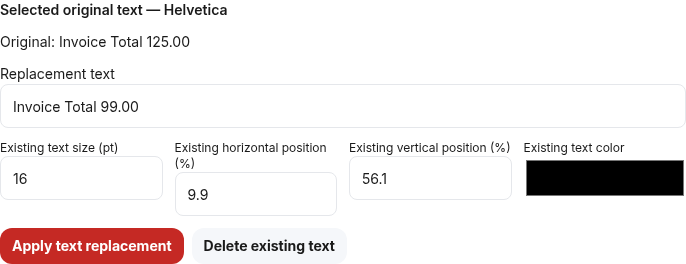
- Under Existing text, choose the object containing “Invoice Total 125.00”. You can also click its outline in the preview.
- Change Replacement text to “Invoice Total 99.00”. Click Apply text replacement.
- Wait for the actual edited-page preview. If the replacement is too wide, reduce Existing text size (pt) or shorten the wording. There is no automatic paragraph reflow.
- Use page navigation to inspect pages two and three. Then click Process and Download.
- Open the saved copy, search for the new amount and try copying its text. Confirm that the other page labels remain. Search is a useful check of this example, not proof that every hidden object in a sensitive PDF has been removed.
Fonts decide what can be replaced
Simple horizontal text using supported standard fonts can accept basic Latin replacement text. With embedded fonts, this editor conservatively allows only characters already present in the selected object. For example, “Embedded Sample Text” can be shortened to “Sample Text”; a new character absent from that object is rejected rather than silently substituted.
Text inside nested graphics, images, unsupported font encodings, invisible OCR layers, clipping or complex text transforms may be read-only. A whole page rotated by 90 degrees is different from text rotated or skewed inside a page. An unsupported message is a reason to use the source application, not to assume the file is damaged.
Add a note when replacement is not appropriate
Choose Add text for a separate note. Set its font, size, color, alignment and position; enter explicit line breaks for multiple lines. Move or resize the box and use Undo or Redo to revise your additions. Zoom helps place elements, while page navigation selects the page being edited. These additions remain overlays.
Whiteout is not secure redaction. A covered name can remain searchable or recoverable. Genuine text replacement also does not inspect metadata, attachments or duplicate content elsewhere. Use a dedicated redaction workflow for confidential information, and keep signed originals because saving changes can invalidate signatures.
Common mistakes and troubleshooting
Do not edit the wrong fragment when a sentence is split across objects. Read the selected original text first. If an amount is rejected, check the font limitation and available width before trying again. If a page has no selectable text, use PDF to Text to distinguish an empty extraction from usable text; that tool does not perform OCR.
For extensive rewriting, obtain the original Word or layout file, change it there and export a fresh PDF. Word to PDF supports a limited DOCX conversion, so complex layouts are usually best exported by their source application.
Questions people ask
Can I change the original font to any font I want? Existing-text replacement keeps its current font. Font family, bold and italic choices are available for newly added text boxes.
Does Undo restore my source file? Your source is never overwritten. Undo changes the current editing session; retain the original download separately.
Does this edit a scanned signature or photograph? No. Those are image content, not supported text objects.
Technical reference: PDFium's text-object editing API.